
How to Handle PPF Account Migrated with Wrong Open Date in Finacle
How to Handle PPF Account Migrated with Wrong Open Date in Finacle

Dear Friends, Many time we face such situation to correct open date of PPF accounts which are migrated with wrong open date. But there is no any option to correct open date of any type of account. In case of PPF account we have to close the account and then re-open account in Transfer-in mode. First we should do zero interest for account in HINTTM command then close the account in HCAAC. Now the following process will be adopted.
- Menu Shortcut - CPPFAO
- Function Code - Open
- CIF ID - Required CIF
- GO

- After GO the following Screen Appear

- A/c Opening Date -
- Mode of operation -
- Account Document Received- Yes
- PPF Maturity Date -
- Account Opening Mode - Transfer
- Old PPF Account Number -
- Old PPF Bank Branch Detail -
- A.T. Number -
- Document Detail -
- Nomination Detail -
- GO
- Verify the account opening using CPPFAV menu in Supervisor login.
- The text file has to be generated from the excel sheet (Use download button for getting excel sheet at last of this post). Excel sheet should contain all the transactions of the PPF account and the balance should be checked.
- The field 'Financial Year End Balance Identifier' should be selected as YES only for the last transaction of a financial year. For all other transactions, it should be selected as NO.
- The fields 'Transaction Date' / 'Value Date' should be in mm/dd/yyyy format only.
- Do not change the account no. of this file because there is no need of its change required and click on Generate File button to generate the text file. Excel template is attached with this mail.
- In Counter PA login, select HTRFTOUN menu. Select the text file generated. In 'Destination Directory' field, give dop
- The following screen appears

- The message 'File uploaded successfully' will be displayed.

- Then, select CTUPLD menu. Enter the account number and then enter the file name ( TRFRINDET-3000365919.TXT). The message 'Data uploaded successfully' will be displayed.
- The following screen appears


- After this process, login as Supervisor and select CTPROC menu. Select 'Verify' and enter the account number. Transactions will be displayed. Click on SUBMIT.
- The following screen appears


- Again login as PA and select CTPROC menu. Select 'Process' and enter the account number. Transactions will be displayed. Click on SUBMIT. A screen showing the transaction id details will be displayed.

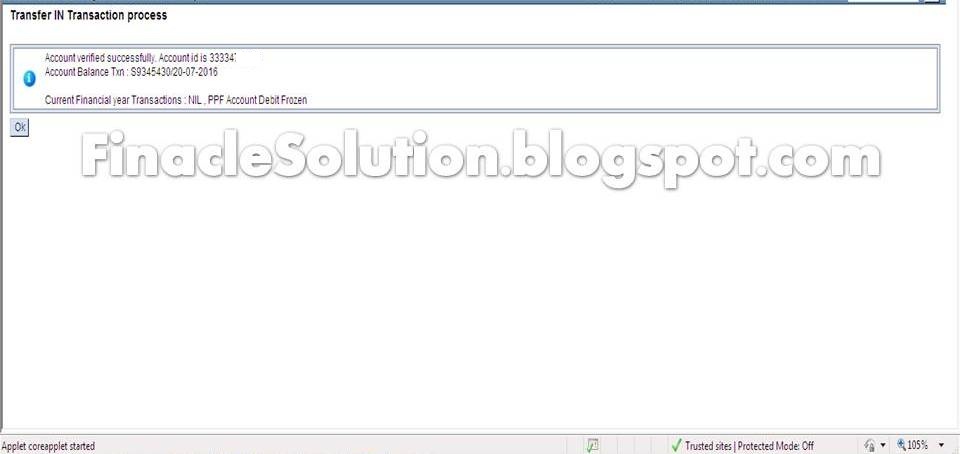
- Then, check the current year transactions in HACLI menu and previous year transactions in CTINQ menu.
- Download PPFTRIN file from given icon

- Before creating the text file, the date format of the system should be changed as mm/dd/yyyy.
- Open PPFTranIn file and enable the content of security before data entry as shown in images.


A complete and latest guide about Finacle ver 10. It is basically written on DOP Finacle used in India Post. It explains all latest changes and solution of Finacle. Finacle solution consists all Finacle Menu and command and explains how to use them with relevant screen shoots.
1 Comments
Blogger please enable copy option on this web page.
ReplyDeletethanks.