
Inward Rejection Procedure in DOP Finacle
- The POSB cheques can be presented at different banks for various purposes by the POSB customers.
- Those cheques will be sent to clearing house and then from clearing house the cheques will be sorted and sent to the respective Post Offices for clearance.These cheques are called as "Inward Cheques"
- In simple terminology Inward cheques are those "The POSB cheques presented at different banks for clearance".
- But in Inward cheques some of the cheques may not clear due to the various reasons those cheques should be rejected in the application.
- Cheques sent in Inward zone and rejected for various reasons is known as Inward Rejection.
Brief Procedure to Handle the Inward Rejection
- In counter PA------ Use HICTM---Function as ADD----- Add the cheque by entering all the required criteria such as account number,amount,transaction code and cheque number and select the carve option as "NO" and then finally click on Submit.
- In Supervisor---Use HICTM---- Verify the added cheque by the counter PA
- Again In Counter PA----- Use HICTM-----Function as Modify and then enter instrument number----Select the Rejection as Inward and then Enter the Presenting Bank sort code and then submit.
- In Supervisor-----Use HICTM verify modification done by the counter PA.
- In Supervisor --- Suspend the zone---Verify the cheques(HICTM)--Validation Run---Validation Report---Post the Zone---Close the Zone.
- After Closing the zone, For the rejected cheques the system will collect charges (Rs 50/-) and this transaction (system generated) will be in the entered state hence kindly post the transaction using the menu HTM(Function as Modify).
- Finally cheque the ledger of the customer account using HACLI.
Step by Step Procedure of Inward Rejection in DOP Finacle
- Open the inward zone in the supervisor by using the menu HMICZ this is a supervisor menu.
- Invoke the menu HMICZ in the supervisor as shown select the function as "Open Zone" and enter the Zone code as "MICR" as follows
 Then Click on Go then the system will ask to enter the total advice amount and total no of instruments in the zone as show
 Then click on submit then the system displays the message zone opened successfully.
At Operator Level
- Invoke the menu HICTM Select the function as "ADD" and enter the zone code as "MICR" as shown in the figure
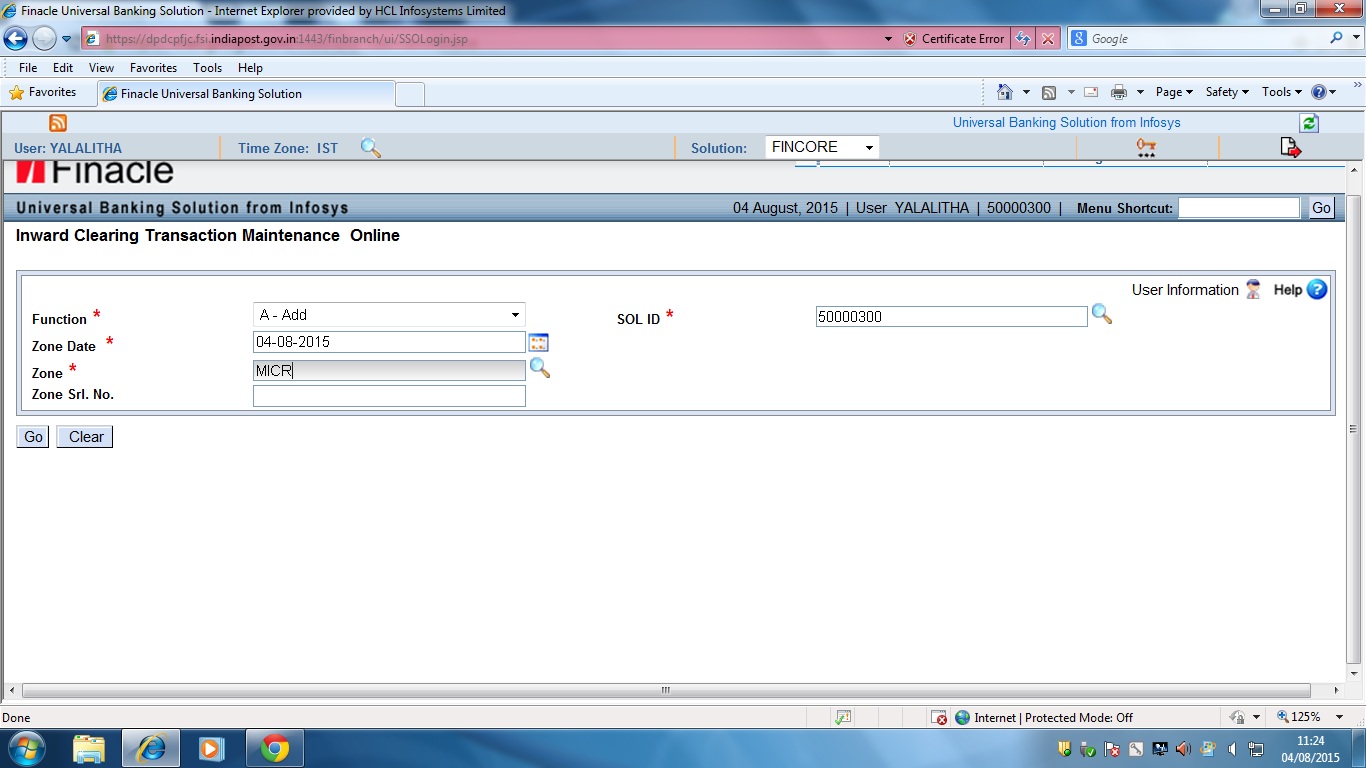
Then click on GO then in the next screen enter the following
Enter the Account number _______________________________
Enter the Amount _____________________________________
Enter the Instrument number _____________________________
Select the carve as "NO" as shown in the below figure

Then click on Submit then the system will show the message All instruments added successfully.
At Supervisor Level
- In Supervisor login invoke the menu HICTM and select the function as "VERIFY"
- enter zone code as "MICR" as shown

Then click on GO as shown then system display the screen as shown

Then click on accept then system will show the list of instruments added by the operator as shown

Then click on submit then system will show the message instruments verified successfully as shown.

At Operator Level
- Invoke the menu HICTM and select function as "MODIFY" as shown in the below figure

Then click on GO then the system will ask the instrument number, enter the instrument number which you would like to modify(in our example 012363) as shown in the below figure

Then click on Accept then the system show the below screen as shown

Then select the Reject as "I-Inward" then click on the icon beside this column as shown

Then the system will show the following screen then select the Reject reason code from the list of reasons available in the system

Then select the reason code form the above list and submit If anyone want to know the charges screen click on the charges button then system will show the below screen.

Click on Accept and then finally submit.
- Then click on Additional details icon as shown to enter the presenting bank sort code i..e, MICR code of the presenting bank as shown

Then the system will show the below screen in this screen, In this screen enter the presenting bank sort code(MICR code) as shown

Click on OK and submit the insturment then the system will display instrument modified successfully.
At Supervisor Level
- Invoke HICTM and select the function as "VERIFY" and enter the zone code as "MICR" then click on Go as shown
Then click on GO as shown then system display the screen as shown
Then click on accept then system will show the list of instruments added by the operator as shown
Then click on Submit to verify the modification.
- In Supervisor --- Suspend the zone---Verify the cheques(HICTM)--Validation Run---Validation Report---Post the Zone---Close the Zone. For detailed procedure abut inward zone CLICK HERE
- After Closing the zone, For the rejected cheques the system will collect charges (Rs 50/-) and this transaction (system generated) will be in the entered state hence kindly post the transaction using the menu HTM(Function as Modify).
- Finally cheque the ledger of the customer account using HACLI.
Source : http://pofinacleguide.blogspot.in/v


A complete and latest guide about Finacle ver 10. It is basically written on DOP Finacle used in India Post. It explains all latest changes and solution of Finacle. Finacle solution consists all Finacle Menu and command and explains how to use them with relevant screen shoots.
0 Comments